Alright, so you’ve been inspired to take a step into the huge world of website creation, and you’ve heard of WordPress. That’s great! It’s an incredibly popular way to build websites that run so many of the sites you see online today and it’s incredibly accessible for everything from personal blogs, photo portfolios, Alright, so you’ve decided to step into the exciting world of website creation—and you’ve heard about WordPress. That’s a great choice! WordPress powers a huge portion of websites on the internet today, from personal blogs and portfolios to full business websites.
If all this sounds a bit technical, don’t worry. This Beginner Guide to WordPress is designed especially for you. It will walk you through everything step-by-step in a simple and easy-to-understand way—even if you have zero experience.
What is a Beginner Guide to WordPress?
A Beginner Guide to WordPress is your starting point for learning how to build and manage a website using WordPress. Think of it as a friendly roadmap that takes you from having just an idea to launching a fully functional website.
In this guide, you’ll learn:
- What WordPress is and how it works
- How to choose hosting and domain
- How to install WordPress
- How to design and manage your website
The goal is simple: to help you build your website confidently without feeling overwhelmed.
Why This Beginner Guide to WordPress is Important
WordPress is powerful, flexible, and beginner-friendly—but like any new tool, it comes with a learning curve. That’s where this Beginner Guide to WordPress becomes valuable.
It helps you:
- Avoid common beginner mistakes
- Save time and effort
- Understand everything step-by-step
- Build a professional website without coding
Instead of feeling confused, you’ll have a clear direction from start to finish.
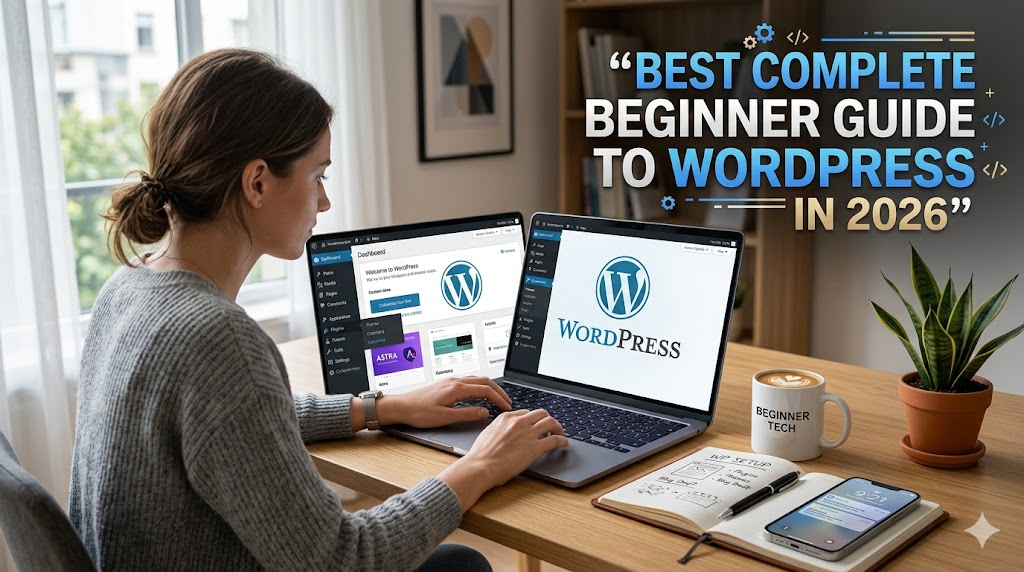
Building Your Website: A Beginner’s Guide
Creating your first website may seem complicated, but when broken into steps, it becomes simple and manageable.
Step-by-Step Beginner Guide to WordPress
1. Choose Between WordPress.com and WordPress.org
- WordPress.org → Full control, best for business and growth
- WordPress.com → Easy setup but limited features
For most users, WordPress.org is the better option.
2. Choose a Domain Name and Hosting
Your domain name is your website’s address (like www.yoursite.com).
✔ Tips for choosing a domain:
- Keep it short and simple
- Make it easy to remember
- Match your business or niche
Your hosting is where your website lives online.
✔ Look for:
- Good uptime
- Fast speed
- 24/7 support
- One-click WordPress install
3. Install WordPress
Most hosting providers offer one-click WordPress installation.
Once installed:
- You’ll get a login link (example: yoursite.com/wp-admin)
- You can access your dashboard
- Your website is officially live
Understanding the WordPress Dashboard
The dashboard is your website’s control panel.
Important sections:
- Posts → Blog content
- Pages → Static pages (About, Contact)
- Media → Images & videos
- Appearance → Design & themes
- Plugins → Extra features
- Settings → Site configuration
Spend some time exploring—it becomes easy quickly.
Choosing and Customizing Your Theme
Your theme controls how your website looks.
✔ Choose a theme that is:
- Mobile-friendly
- Simple and clean
- Fast loading
- Well-reviewed
You can customize:
- Colors
- Fonts
- Layout
- Logo
No coding required!
Adding Content: Posts vs Pages
Understanding content types is important in this Beginner Guide to WordPress:
- Posts → Blogs, articles, updates
- Pages → About Us, Contact, Services
Use posts for regular content and pages for important static info.
Essential Plugins for Beginners
Plugins add features to your website.
Must-have categories:
- SEO → Rank Math / Yoast
- Contact Forms → WPForms
- Security → Wordfence
- Backup → UpdraftPlus
- Speed → WP Super Cache
Don’t install too many plugins—keep it simple.
Tips for Beginners
- Start small and grow gradually
- Keep everything updated
- Use strong passwords
- Take regular backups
- Learn basic SEO
- Explore and experiment
This Beginner Guide to WordPress is just your starting point.
Common Mistakes to Avoid
- Choosing wrong WordPress version
- Ignoring security
- Using too many plugins
- Not optimizing for mobile
- Forgetting backups
Avoid these and your website journey will be smooth.
Conclusion
Congratulations! You’ve taken your first step with this Beginner Guide to WordPress.
You now understand:
- How WordPress works
- How to set up your website
- How to design and manage it
Remember, building a website is a journey. Keep learning, keep improving, and most importantly—enjoy the process!
Frequently Asked Questions (FAQ)
Q1: Is WordPress beginner-friendly?
Yes! WordPress is designed for beginners and is easy to learn with proper guidance.
Q2: Do I need coding skills?
No, you can build a full website without coding.
Q3: How much does it cost?
You can start with ₹300–₹800/month for hosting and ₹800–₹1200/year for domain.
Q4: Which is better: WordPress.com or WordPress.org?
WordPress.org is better for flexibility and long-term growth.to even simple business sites. Don’t let the technobabble scare you, as this guide has been written to lead you through every single stage, as if you’re completely new to this.
Getting Started with Your First WordPress Site
What is a Beginner’s Guide to WordPress?
At its core, a beginner’s guide to WordPress is the first step in learning and using this massively popular Content Management System. It’s like a friendly instruction manual that walks you from the desire of having a website all the way to a live, breathing one. Concepts such as hosting, domains, themes and plugins will be demystified from their intimidating labels into perfectly understandable and manageable topics. The objective of such a guide is to furnish you with the fundamental knowledge to confidently take your first steps into the WordPress realm.
This is a beginner’s guide to WordPress aimed at the first-time user with very little to no knowledge of website design or WordPress itself. Technical terms will be minimal, and each step in the process will have a clear explanation as to why you’re taking it and not just what to do. From picking the right type of WordPress to simply learning to use the backend and what to do with it, we will help you gain confidence to know what decision to make without having to know the answer beforehand. This is about building your dreams and knowing how to put it in motion.
At the heart of it, any good beginner’s guide will focus on the basics of a website. This consists of, but is not limited to: the understanding between WordPress.com and WordPress.org, choosing web hosting, registering a domain name, installing WordPress, navigating the WordPress backend and learning how themes and plugins work in order to expand and beautify your website.
Why a Beginner’s Guide to WordPress is Important
It’s not hard to see why WordPress is the number one platform for creating a website. It’s powerful, scalable, flexible and incredibly easy to get to grips with. But as with any new technology there is a learning curve, and this is where the beginner’s guide to WordPress really shines. It ensures you know exactly what you are doing to avoid costly mistakes and time consuming struggles trawling through endless, confusing, support forums. A well-written guide provides you with a clear, defined structure to build your site.
One of the areas where most users are put off by the initial setup is in its administration. A beginners guide will give you a clear understanding of what all the various different sections of the administration panel mean, which will make the process far less daunting and far more enjoyable. Imagine having a friendly guide on hand, to walk you through each aspect, from choosing your brand name, to picking a theme that fits your desired look.
Understanding how to work with a basic beginners guide will allow you to build a website that looks the part, without having to be an expert in code. You’ll be able to manage the content, maintain the site and continue to add features as your website evolves. This guide is your launch pad into becoming your own independent website creator.
Building Your Website: A Beginner’s Guide
Step-by-Step Guide to Your First WordPress Site
Getting your first WordPress site up and running involves a few key choices right at the beginning. Firstly, you need to decide between WordPress.org and WordPress.com. WordPress.org gives you a greater degree of control over your website, allowing for a completely unique design and making it much more suitable if you want to monetize your site in any way (ads, affiliate links etc). For this you’ll need to get a web host and a domain name. Web hosting is basically renting a piece of the internet to store your website and the domain name is your website’s address on the internet (like ‘www.mygreatsite.com’).
After you decide to use WordPress.org, the next step is to find a web hosting provider. There are loads of providers out there offering easy ‘one-click’ WordPress installations that will have the software running within minutes. Bluehost, SiteGround and HostGator are some of the most popular and when you sign up with them you can get your domain name registered at the same time. Make sure to choose a domain name that’s memorable, reflects your content and is relatively easy to spell. It might all sound a bit complicated, but web hosts are great at supporting you if you get stuck.
Once your hosting is set up and your domain is pointing to it, you can install WordPress using your web host’s ‘one-click’ installer within your hosting control panel. Once installed you’ll be logged into the WordPress dashboard. This is where all the control for your website will be-you’ll use this to change the appearance of your site with themes, add extra functionality with plugins and everything else you could want. Take a bit of time to explore your dashboard.
Choosing Your Domain Name and Hosting
Your domain name is your digital identity. It’s the first impression visitors will have, so choose wisely! Aim for something that is:
- Relevant: It should reflect your website’s purpose or brand.
- Memorable: Easy for people to recall and type.
- Concise: Shorter is generally better.
- Easy to Spell: Avoid complicated words or hyphens if possible.
Think about your target audience and what would resonate with them. For example, if you’re a baker, “BestLocalBakes.com” is more descriptive than “JaneDough.net”. Many domain registrars, including those that also offer hosting, allow you to check domain availability and purchase it during your hosting sign-up.
Web hosting is where your website lives online. For beginners, shared hosting is usually the most affordable and suitable option. This means your website shares server resources with other websites. Look for hosting providers that offer:
- Good Uptime Guarantees: You want your site to be accessible 24/7.
- Reliable Customer Support: Especially important for beginners who might need help.
- One-Click WordPress Installation: This automates the setup process.
- Sufficient Storage and Bandwidth: Enough to accommodate your site’s content and traffic.
Companies like Bluehost, SiteGround, and WP Engine are popular choices with beginner-friendly packages and excellent support.
Installing WordPress
Actually installing WordPress is often the simplest bit of the whole process, thanks to modern web hosts. Almost all decent hosts provide a ‘one-click install’ from within their control panel (this is normally called cPanel or something similar). From within the control panel you’ll find an icon for WordPress or a similar auto-installer.
When you click on the installer a few straightforward prompts will guide you through. You’ll normally be asked which domain to install WordPress to (if you have several domains), what name and password you want to use for your WordPress administrator account, and what email address you’d like to be used. It’s important to use a strong password here, and try to avoid a username of ‘admin’.
After this process is completed your WordPress installation will be present in your web hosting account, and you’ll be shown the link for your WordPress login page (which is usually yourwebsite.com/wp-admin) and your login details. This is what you’ll use to access the WordPress dashboard, and start adding content and configuring your site. This should feel like a big moment, you’ve just birthed your WordPress website!
Navigating the WordPress Dashboard
Welcome to your WordPress control center! The dashboard is where you’ll manage every aspect of your website. Upon logging in, you’ll see a main menu on the left-hand side. Key sections include:
- Dashboard: Quick view of site stats and news.
- Posts: This is where you can create and manage your blog posts.
- Pages: These are for more static types of content (About Us, Contact Us, etc.).
- Media: Where you’ll upload images, videos, and other files.
- Appearance: Control the look of your site using themes and modify the design of your site.
- Plugins: Add functionality and new features to your site.
- Users: Control who is allowed to access your site.
- Settings: General site configuration options.
Go through all the different sections, spend a little bit of time clicking around and getting to know them. It might feel a little overwhelming in the beginning but as you’ll start using the different parts, you’ll get more comfortable with each one. It’s actually not that hard, most things are pretty straight forward.
For those of you who are beginners and especially for those who are not techy, make sure to spend some time in the “Appearance” section. Under “Appearance” there are “Themes”. These are what will control how your website look and feel (design and layout, colors, etc.). There are some standard themes in WordPress, but there are thousands of free and premium themes you can search for and install directly from your WordPress dashboard.
Then there is the “Plugins” section. You can basically think of plugins as apps for your website, the will give you extra functionality, such as contact forms,seo features , selling tools, e-commerce solutions and much more. You can find and install plugins directly from your WordPress dashboard. Be mindful that not all plugins are of equal quality, and installing too many plugins may cause your website to run slower.
Choosing and Customizing Your Theme
Your theme is the visual backbone of your WordPress site. It determines how your content is presented to visitors. When you go to “Appearance” > “Themes,” you’ll see your currently active theme and options to add new ones. WordPress offers a vast library of free themes you can preview and install with a single click.
When choosing a theme, consider these factors:
Does it look appealing on any device (desk top, tablet, phone)?
Is it very simple. If I’m new to this, it should be a clean and easy to navigate theme.
What are the reviews. What are others saying about the theme.
Compatibility: Does it work well with other plugins I might be using?
Once you install and activate a theme, it will allow you to use the “Customize” link located under “Appearance” on your WordPress dashboard. When you do this, it will display a “live preview” of the site you are editing. It is in this Customizer tool that you can change settings such as colors, fonts, upload a header image, addwidgets (these are small content blocks that usually appear in your sidebars or footer) and much more. Most themes come with enough features in their customizer to make your site appear unique without needing to be a graphic designer.
Take the popular Astra theme, for example. Within its customizer, you can easily change the site title and tag line, upload a logo to it, select your accent color for the theme and choose different layout styles of it. Customization doesn’t have to be hard when using these tools and you can keep making changes in the Customizer until you are happy with how the website looks. Also remember that you can always change your theme again if the current one doesn’t work out for you.
Adding Content: Posts vs. Pages
It is important to differentiate between a WordPress “Post” and a “Page” for the sake of efficiency. Most typically, a post is used for dynamic content. This includes posts such as those published to your blog, your news page, or for special announcements. When looking at your blog page, posts appear in chronological order with each post listed by date; they also appear grouped into categories and can be tagged with key words to assist your visitors in finding information that is relevant to their search.
The term “Page” typically refers to static, evergreen content that could include anything such as your “About Us” page, a “Contact Us” form, or a “Privacy Policy.” Your pages have no date associated with them and appear from a navigation link, representing basically any informational page about you or your business.
If you look on your dashboard for “Posts” or “Pages” you will see the option to click on “Add New”. If you were to click on this for either a Post or a Page, you would land in the WordPress editor. Currently, there is what is called the Block Editor (otherwise known as Gutenberg), which operates as a drag-and-drop interface allowing you to put different pieces of content such as paragraphs, headings, lists, and images wherever you feel is most appropriate, which is much easier than standard text editors.
As an example, for a post discussing “How to Grow Tomatoes” you would click “Posts”, then “Add New”. You would enter your post title and use a text block for the content. Then you would add blocks for your images and a list of instructions. You could categorize your blog post as “Gardening” and assign the tags “vegetables”, “organic” and “summer”. For a “Contact Us” page you would instead click on “Pages” > “Add New” and then add in the relevant details and possibly a map.
Essential Plugins for Your First Site
Plugins are what give WordPress its incredible versatility. They extend its functionality without you needing to write a single line of code. For a beginner’s first WordPress site, focusing on a few key plugins can make a big difference in usability, security, and search engine visibility.
Here are some must-have plugin categories for beginners:
Plugin SEO: for your website to be discoverable in search engines. A few good options free include Yoast SEO and Rank Math, which give step-by-step guidance on how to optimise content.
Plugin contact form: so your visitors can make contact easily. Some of the best ones free include WPForms and Contact Form 7.
Plugin security: to ward off malware and hackers. Wordfence security and Sucuri security provide strong free functionality.
Plugin backup: This is extremely important for peace of mind. A recommended free option widely available is the auto-back up plugin UpdraftPlus.
Plugin speed/caching: The fastest website loading speed gives the best results. Some top recommendations include WP Super Cache or W3 Total Cache.
To add a plugin you have to go to “Plugins” -> “Add New” through your dashboard. Search the name of the plugin you need, click on “Install Now” and then “Activate.” Settings for installed plugins are normally in their own menu item, or can be found under the general menus in the dashboard.
Tips and Best Practices for Beginners
As you build your first WordPress site, keep these tips in mind to ensure a smooth and successful experience:
- Start small; you don’t have to develop all the features and a beautiful design from the get-go. Publish your content, and make your site look decent. You can always add functionality later on.
- Keep your WordPress, themes, and plugins updated: These get frequent updates to improve the security features. Check your dashboard, get it done whenever there’s an update available. That’s an essential part for your site security.
- Use a strong password: Use a strong, unique password for your WordPress administration account. Maybe it’s better to have one and use a password manager for it.
- Have a good back-up solution: As I said, that’s a vital part of WordPress website. Test your back-up occasionally to ensure it works fine.
- Learn some SEObasics:Even a basic understanding of Search Engine Optimization can greatly help your site’s exposure. Stick to useful keywords in your content and meta descriptions.
- Make use of the WordPress community: If you get stuck somewhere, the WordPress community is huge and very helpful; there are tons of online forums, tutorials, and documents.
These practices will not only make your website building process easier but also ensure your site remains secure, functional, and discoverable over time. Building a website is a marathon, not a sprint, and these habits will set you up for long-term success.
Common Mistakes to Avoid
Even with the best intentions, beginners can sometimes stumble. Being aware of common mistakes can help you sidestep them:
- Choosing the wrong version of WordPress. If you choose the free/personal plan of WordPress.com, you limit your ability to customize and monetize in the long run. Know the difference between .com and .org.
- Failing to take security seriously. Not updating your theme/plugins, using weak passwords, or neglecting security plugins will leave your website open to attack.
- Overuse of plugins. Plugins are fantastic, but if you install too many they can make your website incredibly slow and can create many security vulnerabilities. Install only what you need and get rid of unused ones.
- Lack of mobile responsiveness. A non mobile-responsive website has poor user experience and turns a large number of users away. Select a responsive theme for your website.
- Forgetting to backup. Losing your website and starting from scratch is a painful process to experience. Back up regularly!
- Wrong domain name. Choosing the wrong domain name will harm your brand and guest experience from the outset.
By being mindful of these common pitfalls, you can build a more robust, secure, and user-friendly WordPress site from the outset, saving yourself potential headaches in the future.
Congratulations! You’ve taken the first giant leap towards creating your own corner of the internet with WordPress. We’ve covered what WordPress is, why it’s such a fantastic choice for beginners, and walked you through the essential steps from choosing a domain and hosting to installing WordPress, customizing your theme, and adding content. Remember, building a website is a journey of continuous learning and refinement. Don’t be afraid to experiment, explore new themes and plugins, and most importantly, have fun with it! Your first WordPress site is just the beginning of what you can achieve online.
Frequently Asked Questions (FAQ)
Q1: Is WordPress difficult for beginners to learn?
A1: WordPress is designed to be user-friendly, especially for beginners. While there’s a learning curve, the intuitive dashboard, vast community support, and readily available tutorials make it one of the most accessible website platforms out there. With a good beginner’s guide like this one, you can grasp the essentials quickly.
Q2: What’s the difference between WordPress.com and WordPress.org?
A2: WordPress.org is the self-hosted version where you have full control over your website, including customization, plugins, and monetization. You’ll need to buy your own hosting and domain. WordPress.com is a hosted service with a simpler setup but comes with limitations on customization, advertising, and plugin usage, especially on free or lower-tier plans. For most serious website projects, WordPress.org is the preferred choice.
Q3: How much does it cost to start a WordPress site?
A3: The cost can vary, but you can start a basic WordPress.org site for as little as $3-$10 per month for shared web hosting. Domain names typically cost around $10-$15 per year. Many themes and plugins are free, though premium options offer more features. So, a very budget-friendly start is achievable.
Q4: Do I need to know how to code to use WordPress?
A4: Absolutely not! WordPress is built for users without coding knowledge. You can create a beautiful and functional website using themes and plugins. While knowing some basic HTML/CSS can be helpful for advanced customization, it’s not required to get started or even to build a very sophisticated site.